
Appearance
Connect to Power BI
Overview
This guide explains how to use the 'Connect Power BI / Excel' feature in Tube2Sheet to generate Power Query code and import data into Power BI.
Step-by-Step Guide
Generate Power Query Code in Tube2Sheet
Open Connection Options
- In the Tube2Sheet sidebar, click the "Options" tab.
- Select 'Power BI / Excel Connect'.
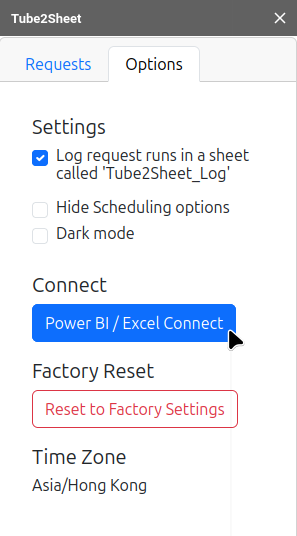
Select Sheet and Copy Code
- In the "Connect to Excel / Power BI" window, select a sheet.
- Click 'Copy to clipboard' to fetch the code.

Import Data into Power BI
Create a Blank Query
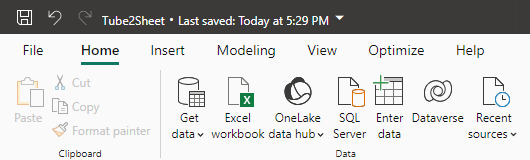
- Open Power BI and create a new document.
- Click 'Get Data', then select 'Blank query'.
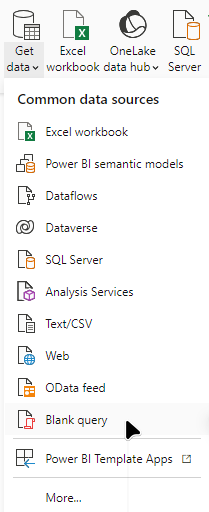
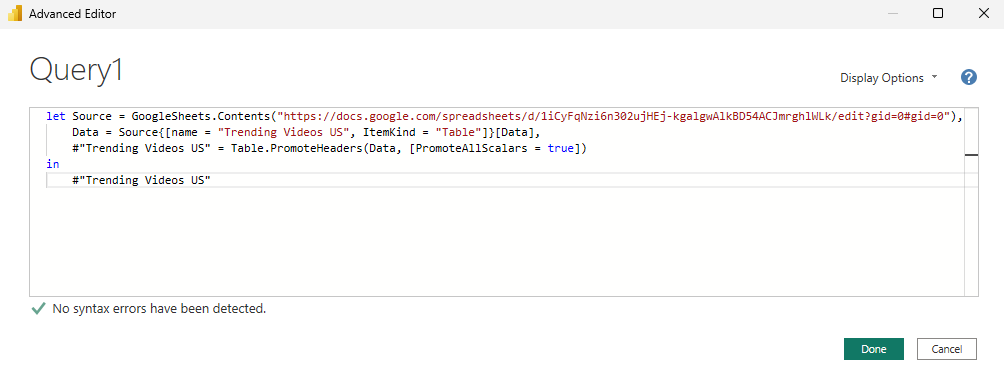
Paste Power Query Code
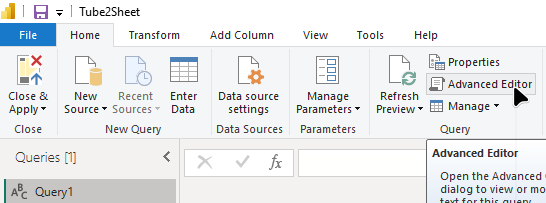
- In the Query Editor, click 'Advanced Editor'.
- Replace the existing code with the copied PowerQuery code.
- Click 'Done'.
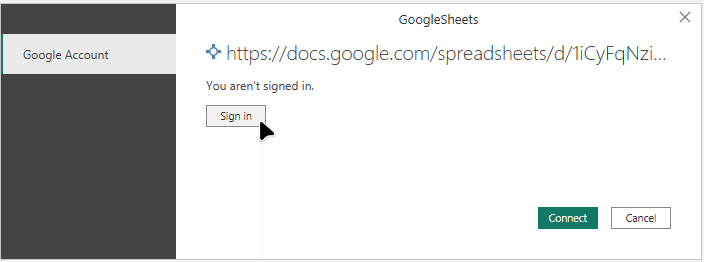
Authorize Connection
- Click 'Edit Credentials'.
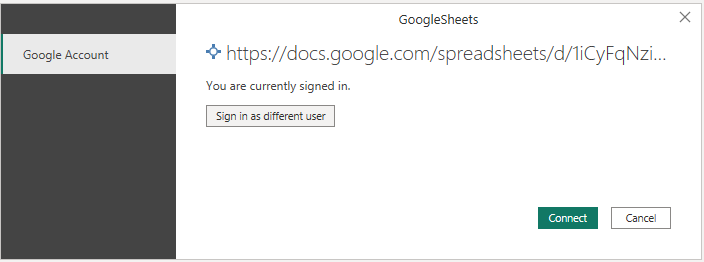
- Select 'Sign in' and follow the prompts to grant Power BI access to your Google Sheets.
- After successful authorization, click 'Connect'.

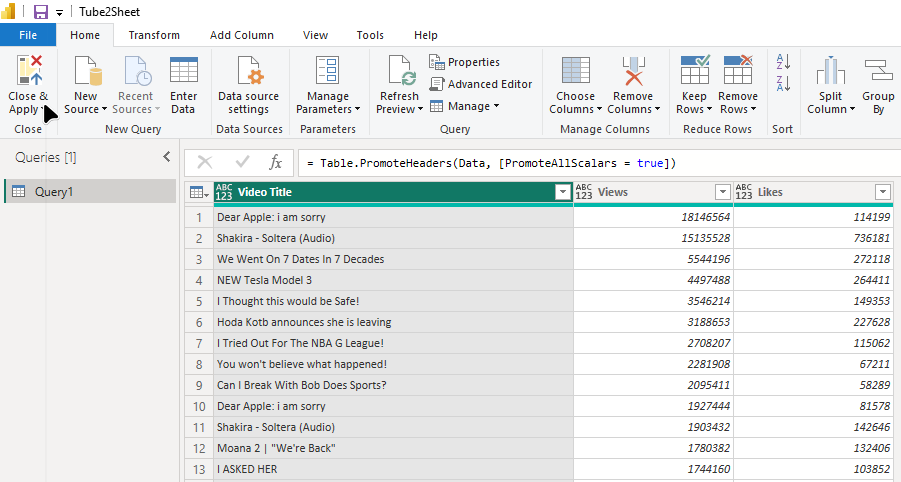
Finalize Data Import
- Review the imported data.
- Click 'Close & Apply' to save the query.
Creating a Report in Power BI
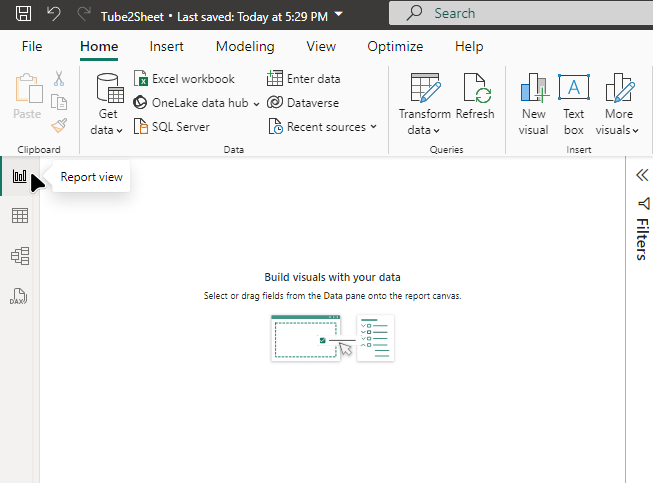
Switch to Report View
- Ensure you are in the 'Report View' of Power BI.
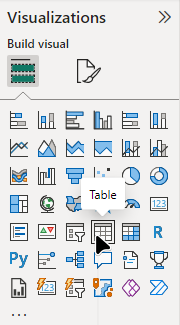
Add a Table Visualization
- From the Visualizations pane, select the 'Table' visualization.
- Adjust the size of the table on the canvas as needed.
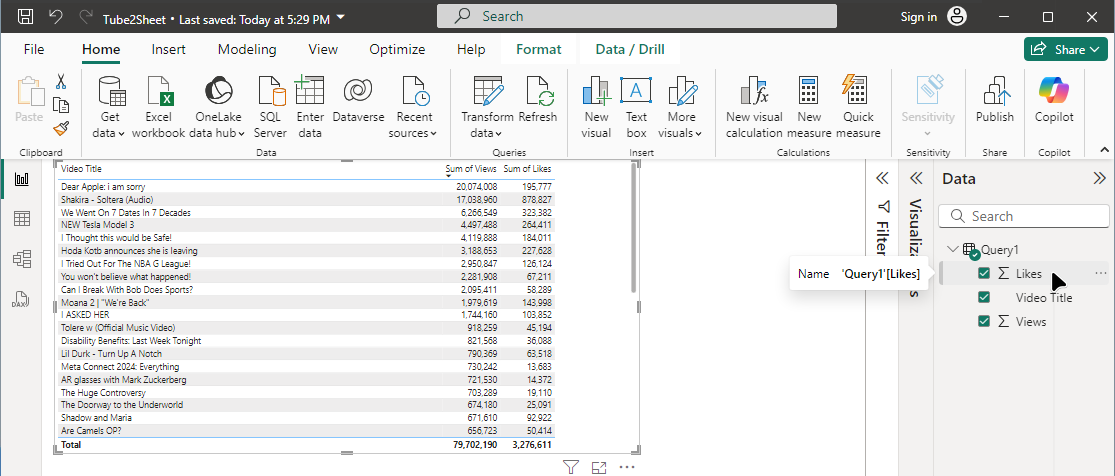
Populate the Table
- In the 'Fields' pane, select the data fields you want to display.
- Drag and drop these fields into the table visualization or the 'Values' section of the Visualizations pane.
Troubleshooting
If you encounter any issues during the connection process:
- Ensure you have the necessary permissions to access the Google Sheet.
For additional support, please contact our support team at support@tube2sheet.com.